




You add a certification in the Licenses & certifications section of your profile: click Me, then View profile, then Add profile section, open Recommended, choose Add licenses & certifications, complete the fields and click Save. The steps are the same for a Scrum certification. What differs is the detail you type in and the proof you link to. This guide covers both, on desktop and mobile, and explains how to fix an entry that will not appear.
Table of Contents
- Add a certification on desktop
- Add a certification in the mobile app
- What to type in each field
- Adding a Scrum certification: provider by provider
- What your badge will look like
- Certification or certificate of completion?
- Putting a designation after your name
- When your certification does not show up
- Make the entry work harder
- Our perspective
- Scrum vouchers if you are building your profile
- FAQ
- Sources
Add a certification on desktop
LinkedIn’s own help page sets out the route. If you have never added a certification, you first create the section, and the same menu does that for you.
- Click the Me icon at the top of your LinkedIn homepage, then View profile.
- Click Add profile section in the introduction area.
- Open the Recommended dropdown and choose Add licenses & certifications.
- Enter your details in the pop-up window.
- As you type the issuing organisation, pick it from the list that appears so the issuer’s logo shows beside your certification.
- Click Save.
The steps above follow LinkedIn’s help page on managing licences and certifications. Menu labels move around from time to time, so if a button is not where you expect it, look for the same wording elsewhere in the introduction area.
Add a certification in the mobile app
On a phone the route is almost identical, according to this step-by-step guide:
- Tap your profile picture, then View profile.
- Tap Add section, then Recommended.
- Tap Add licenses & certifications.
- Complete the details and tap Save.
If you are copying a verification link from an email, do the copying first and then open the app. It is far easier than switching between screens halfway through the form.
What to type in each field
The form is short, but each field affects how credible the entry looks. Here is how to treat each one.
| Field | What to enter | Common mistake |
|---|---|---|
| Name | The exact title of the credential, as the provider writes it | Shortening it or adding words such as “Advanced” |
| Issuing organisation | The body that awards the credential, chosen from the dropdown where it appears | Entering the training provider or the voucher seller instead of the awarding body |
| Issue date | The date shown on your certificate or badge | Using the date you started studying |
| Expiration date | Only if the provider sets one; tick the “does not expire” box otherwise | Inventing an expiry date, or leaving a lapsed one in place |
| Credential ID | The ID or licence number on your certificate, if there is one | Skipping it when you have one |
| Credential URL | The public verification link to your certificate or badge | Pasting a link that only works while you are logged in |
Two of these deserve more attention.
Issuing organisation: name the body that awards the credential
If the organisation is not in the dropdown, type its full name manually. A troubleshooting list from CertFusion says the same. Where it does appear, select it: that is what puts the logo next to your entry.
This matters for Scrum credentials in particular. The organisation that awards the credential is the one that goes in this field. A site that sold you a voucher, or a platform that hosted the course, is not the issuer unless it also issues the credential.
Credential URL: the field most people skip
Paste the public verification link for your certificate or digital badge here. Once it is in place, your profile shows a Show credential button that opens the proof. SocialRails points out that a certification a recruiter can confirm in one click is easier to trust than a bare entry with nothing behind it. Whether anyone checks is up to them, but the link costs you nothing to add.
Adding a Scrum certification: provider by provider
Scrum credentials come from different organisations, and each has its own recommended method. Follow your provider’s instructions rather than a generic one.
Scrum.org credentials
Scrum.org recommends adding certifications through Credly: accept your badge there, then follow Credly’s prompts to connect your LinkedIn account and share it. If you have lost the invitation email, use the Manage at Credly button on your Scrum.org profile.
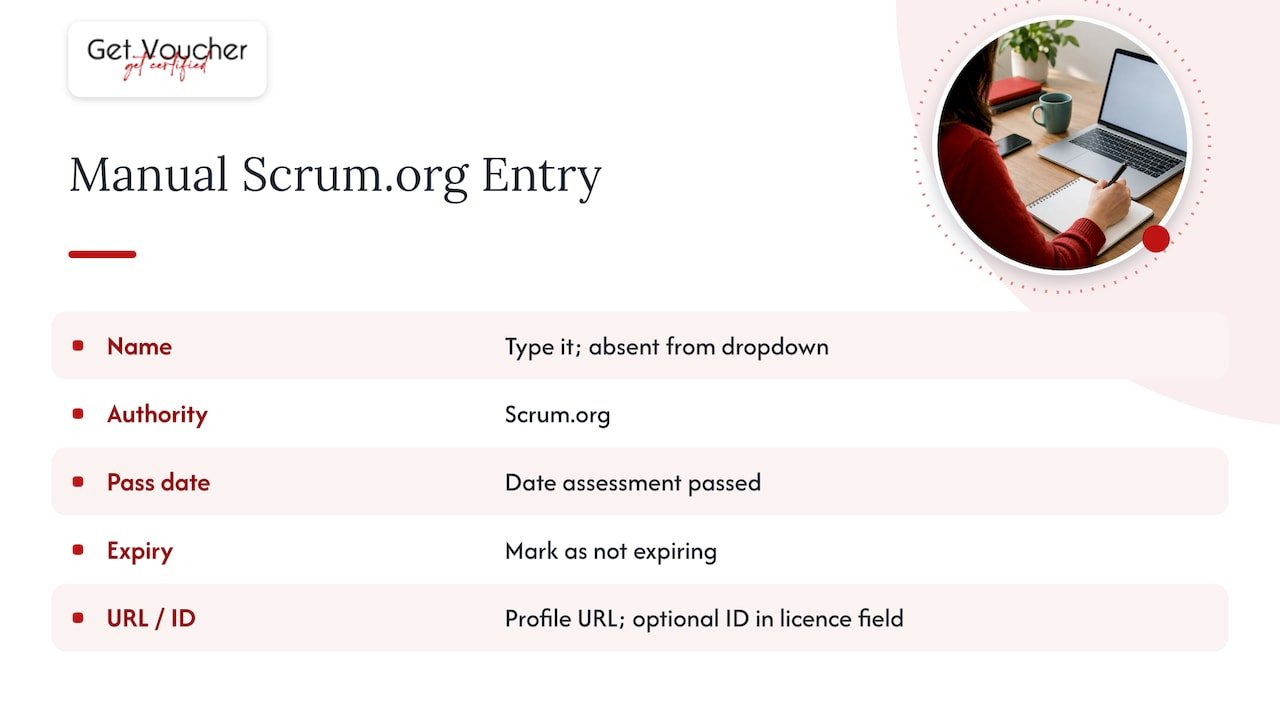
To enter it by hand, Scrum.org advises typing the certification name yourself (for example Professional Scrum Master I), because it will not appear in the dropdown. Set the authority to Scrum.org, use the date you passed the assessment, mark it as not expiring, and use your Scrum.org profile URL as the credential URL. A member ID can go in the licence number field if you wish.
For course completions rather than assessments, Scrum.org has a separate guide for Professional Scrum Fundamentals. It uses the name “Professional Scrum Fundamentals Training” and leaves the expiration date and credential ID blank. That is a different entry from an assessed certification, which brings us to an important distinction below.
Scrum Alliance credentials
Scrum Alliance’s help centre describes two ways to share a digital badge. The first uses the badge platform’s share button, then Add to Profile, then authorisation and Save. The second is manual: enter the name (for example Certified ScrumMaster®), the issuing organisation, the dates and the badge link as the credential URL. It also advises turning off pop-up blockers before sharing, because they can interrupt the process.
SCRUMstudy certifications
For SCRUMstudy credentials such as Scrum Master Certified (SMC®), use the details exactly as they appear on the certificate your provider issues, and take the verification link from the provider rather than from a third party. Validity and renewal are provider-specific, so check the terms before deciding whether to enter an expiry date. Our guide to maintaining your SCRUMstudy certification and our explainer on what expires and what does not go through it.
What your badge will look like
Do not be surprised if the picture you shared does not appear. Credly’s support page explains that LinkedIn does not display the badge image in this section. It shows the issuer’s logo, and a See certificate button lets people verify the badge details. Sharing from the badge platform, rather than typing the entry in, means anyone can click the logo or name to learn more and check the credential is genuine.
A few other behaviours are worth knowing:
- Order is automatic. According to SocialRails, you cannot drag entries into your own order. The section generally lists credentials with no expiry first, then the most recently issued.
- Autofill is gone. Business Insider reports that partner “Add to Profile” links no longer fill in the fields, so expect to check or type the details yourself after clicking one.
Certification or certificate of completion?
Before you add anything, decide what you actually hold. The two are not the same, and LinkedIn presents them in the same section.
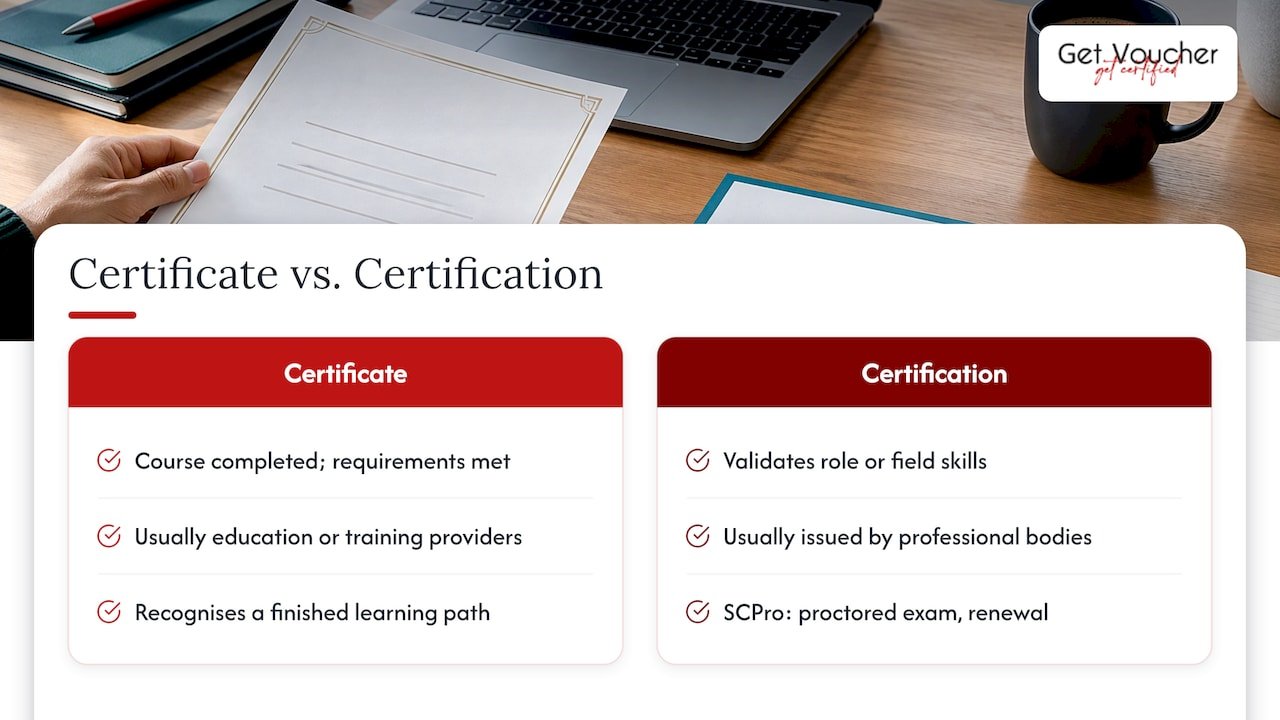
edX explains that a certificate verifies you completed a course and met its requirements, while a certification validates that you have the skills or knowledge for a role or field. Professional bodies generally issue certifications, and educational institutions or training providers generally grant certificates.
Texas State University’s career services makes a similar point about LinkedIn Learning: most courses award a certificate of completion, which is not an industry-recognised certification. The supply chain body CSCMP draws the line in its guidance for LinkedIn Learners: completion certificates recognise a finished learning path, whereas its SCPro™ certification rests on a proctored exam with renewal, and only people who pass may call themselves certified.
In practice, name each entry for what it is. A course completion goes in as a course completion. An exam-based credential goes in under its official title. Readers of your profile can tell the difference, and being precise protects your credibility.
Putting a designation after your name
The headline and name area follow different rules from the certifications section. Some bodies allow letters after your name only for certified, active members. The CFA Society San Francisco, for instance, says candidates must not use candidacy in their headline or show an expected date. Other credentials come with their own rules.
Before adding letters to your name, read your certifying body’s terms on how you may refer to the credential. If the terms do not allow it, keep the credential in the certifications section, where it is safe to show.
When your certification does not show up
Most problems come down to one of a handful of causes.
- No Licenses & certifications section. Add it through Add profile section.
- Issuer missing from the dropdown. Type the full name manually.
- Credential URL not working. Check for typos and test the link in a private browser window.
- Entry not appearing in search. CertFusion suggests waiting 24 to 48 hours and checking that your profile is public.
- Badge email not arriving. Security Blue Team’s guidance is to check spam and junk folders and confirm you have met every requirement. If the badge still does not show, refresh after a few minutes and check the entry saved.
- Pop-ups blocked. If a share button does nothing, disable your pop-up blocker for the badge site.
Make the entry work harder
Adding the entry is the easy part. A few habits make it more useful.
- Add the skill too. Scrum.org’s guide suggests adding Scrum as a skill alongside the certification, so the two reinforce each other.
- Keep the details consistent. The name, issuer and date should match your CV, so nobody has to wonder which is right.
- Remove what has lapsed. If a credential expires under its provider’s rules and you have not renewed, update the entry.
- Carry the link beyond LinkedIn. If you use a digital card for networking, adding LinkedIn to a business card means people who meet you can reach the profile that carries your credentials.
No certification proves performance on the job, and a LinkedIn entry does not change that. What it does is show, clearly and verifiably, what you have studied and which body awarded it.
Our perspective
We see the same pattern with learners who finish a Scrum credential: they are proud of it, then add it to LinkedIn in a hurry and lose most of its value. The wrong issuer, a missing link or a course certificate labelled as a certification are all easy to avoid.
Our advice is to treat the LinkedIn entry as the last step of your preparation, not an afterthought. Know which organisation awards your credential, keep the verification link from your provider, and describe the exam accurately. For example, the SCRUMstudy SMC® exam is a 100-question, 120-minute online unproctored exam, and you should describe it as the provider does.
This is also why we like a clear progression. Start with a free credential such as Scrum Fundamentals Certified, then move to a role-based one when you are ready. Each step adds a verifiable line to your profile, and you can see what you have built. We work with providers including VMEdu and SCRUMstudy, and we are open about that commercial relationship. We sell vouchers for SCRUMstudy credentials, and we do not sell Scrum Alliance or Scrum.org credentials.
Rayan
Scrum vouchers if you are building your profile
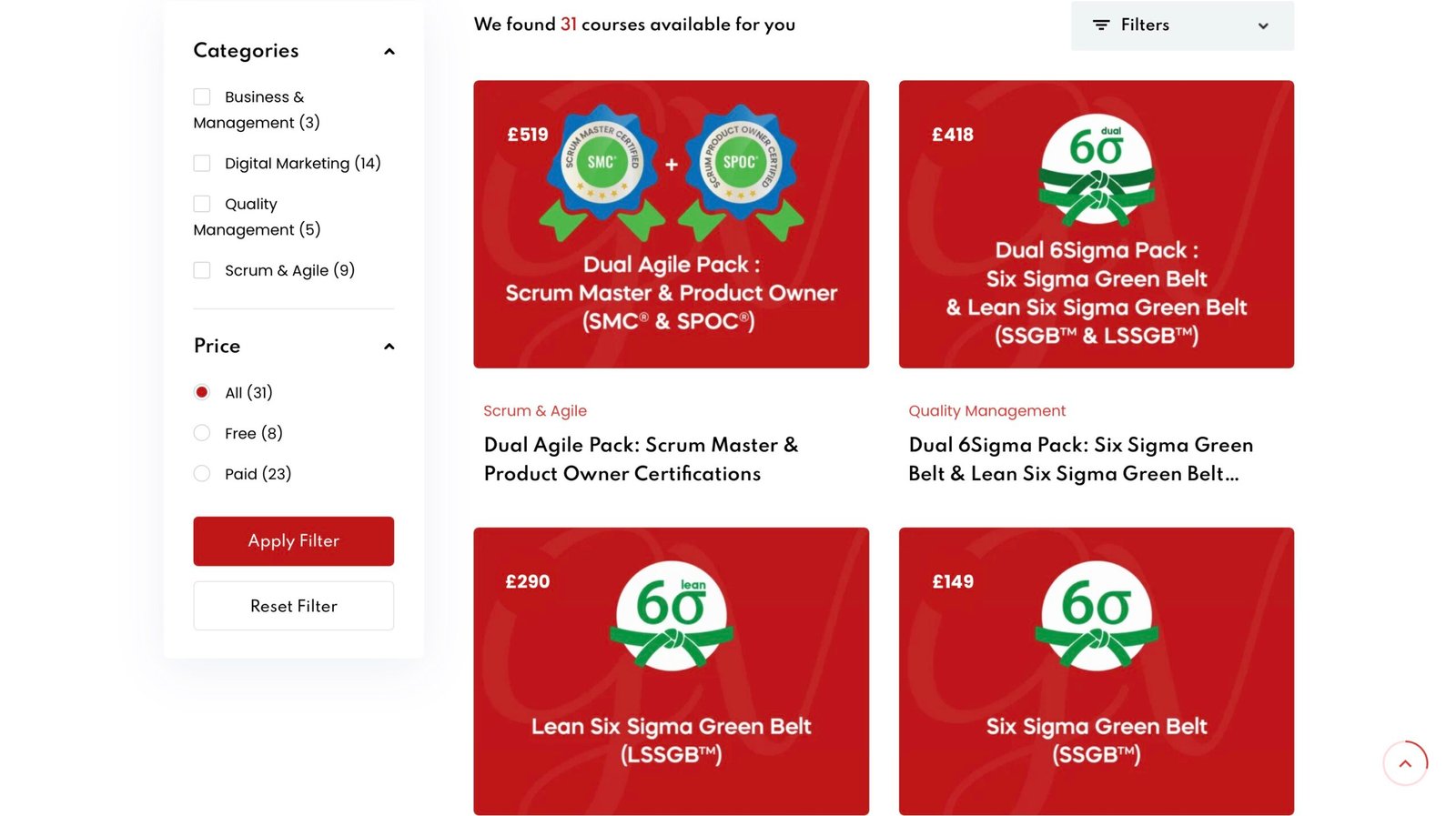
If you are still choosing a credential, our Scrum & Agile category lists the SCRUMstudy options we offer. Scrum Fundamentals Certified is free (£0), Scrum Master Certified (SMC®) is £249 and Scrum Product Owner Certified (SPOC®) is £299, all one-off prices. What each purchase includes differs by product, so check the product page for training, materials and exam details. Our certifications overview shows every area we cover.
If you cannot decide between roles, our guide to matching your role to a Scrum certification walks through it, and the Scrum Master Certified page has the details for the most popular route.
FAQ
Why can’t I add a certificate to my LinkedIn profile?
Usually the Licenses & certifications section has not been created yet, or you are in the wrong menu. Use Add profile section, then Recommended. If the issuer does not appear in the dropdown, type its full name instead. If it still fails, try a different browser and disable pop-up blockers.
Do I need a Credential URL?
LinkedIn lets you save without one, but a working link gives viewers a Show credential button and a way to verify the certificate. Use the public link your provider gives you, and test it in a private window before saving.
Should I add an expiry date to my Scrum certification?
Only if your provider sets one. Validity differs between providers: Scrum.org, for example, advises marking its certification as not expiring, while other bodies have their own rules. Check your provider’s terms and enter the date accordingly.
Can I add a LinkedIn Learning course certificate in the same section?
Yes, you can, but label it honestly as a course completion. It recognises finished learning, not an exam-based professional certification, and the title you give it should make that clear.
Sources
- How to Add a Certificate and Licenses to Your LinkedIn Profile (wikiHow)
- CertFusion: How to Add a Certificate to LinkedIn
- SocialRails: How to Add Certifications to LinkedIn
- Scrum.org: How Do I Add My Certificate to My LinkedIn Profile?
- Scrum.org: Promote your Professional Scrum Fundamentals course completion
- Scrum Alliance: How to add a digital badge to LinkedIn
- Credly: What will my badge look like on LinkedIn?
- Business Insider: How to Add a Certification on Your LinkedIn Profile
- edX: Add an edX certificate to LinkedIn
- Texas State University Career Services: LinkedIn Learning
- CSCMP: LinkedIn Learners
- CFA Society San Francisco: Displaying your Designation on Social Media
- Security Blue Team: Digital Badges, LinkedIn and Credly
- EcoCard: Adding LinkedIn to a business card